

Table of Contents
Create Account
To create an account, go to worker.io.net. Currently, you can sign up using Google, Apple ID, X, or Worldcoin. Choose your preferred option, click Sign Up, and you’re all set to join us. Go toworker.io.net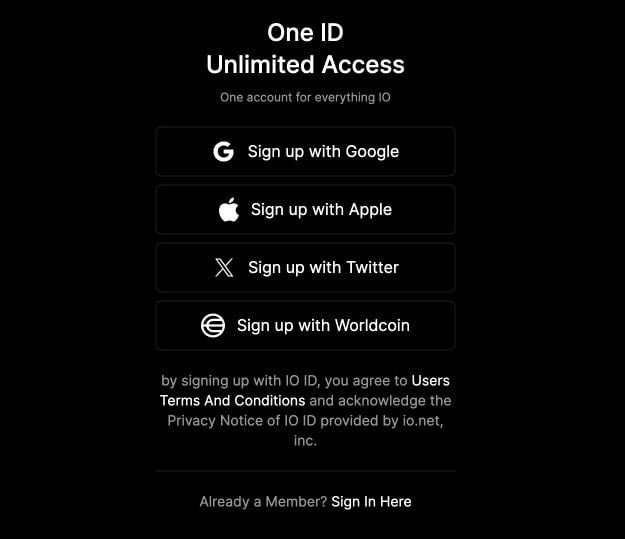
Requirements
Devices that meet the minimum system requirements are eligible for job assignments. All devices must pass our Proof of Work verification through the Worker to be hired by clusters. To view a list of the current supported devices, see Supported Devices.After your onboard your device for the first time, there is a 12 hour waiting period until it’s eligible to be hired as a worker. Your device is only subject to the waiting period after its initial onboarding.
Minimum System Requirements
- 12 GB RAM
- 256 GB SSD
- Windows: NVIDIA GeForce RTX 30xx and above series / MacOS: Apple M3, M4.
- Internet Speed (please use speedtest.net or a similar service to check your speed) To qualify for the airdrop, the minimum requirement is 100Mb/s download and 75Mb/s upload. However, for a higher chance of being hired, the recommended minimum requirements are:
- Download: Above 500 Mb/s
- Upload: Above 250 Mb/s
- Ping: Below 30ms
For better performance, we recommend a download/upload speed of 200–500 Mbps and 16GB of RAM to avoid crashes.
Staking
Your must stake to your device to make it eligible for block rewards and to be hired for jobs. For more information about staking, see our Staking documentation.Set Up a New Worker
We have detailed guides available to help you set up your worker on various operating systems such as: These guides are tailored to provide step-by-step instructions, ensuring a smooth setup process for your new worker. Whether you’re using MacOS, Windows or Ubuntu, you’ll find comprehensive guidance to join get your worker up and running efficiently.App Guide
Workers Homepage
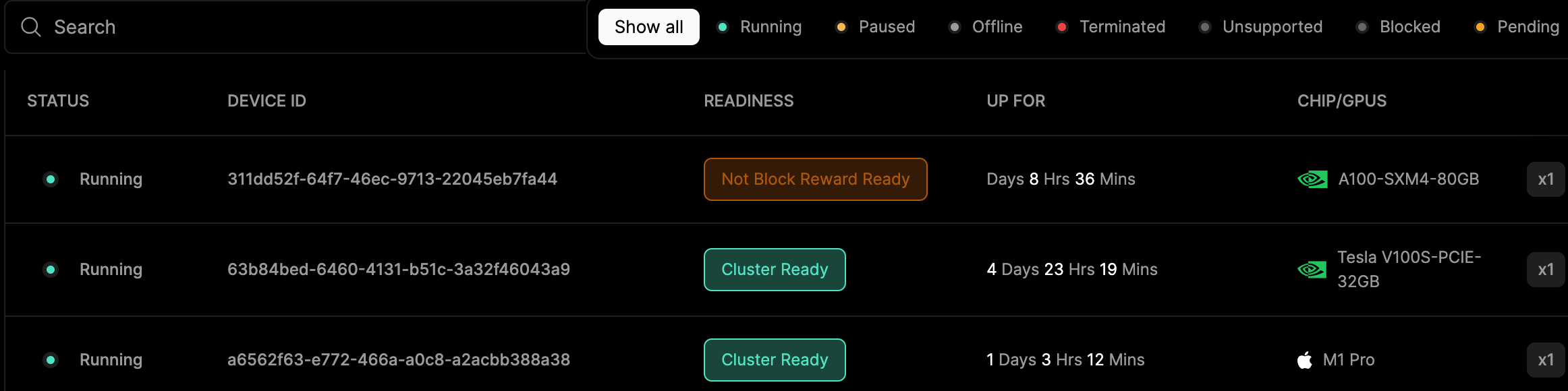
This screen provides users with real-time access to general information about all their calculations. Users can easily see who is connected to the network, currently active, or experiencing errors. Additionally, they can perform actions like renaming and deleting devices. For users managing a large number of devices, features like search and sorting by criteria such as Status, Brand, Technology, Connectivity Tier, and Security Compliance are invaluable. This page allows you to monitor workers and track data such as:- Status
- Device ID- The unique identifier for your device. Click the ID to view the Device Detail page.
- Readiness- This value provides insights into your device’s readiness for Block Reward eligibility.
- Up For
- Chip/GPUs
Device Status
Device Status is displayed at the top of the table.
Readiness
The Readiness column differs from Status. This value provides insights into your device’s readiness for Block Reward eligibility. The screenshot below shows the Readiness column in the Device Status table.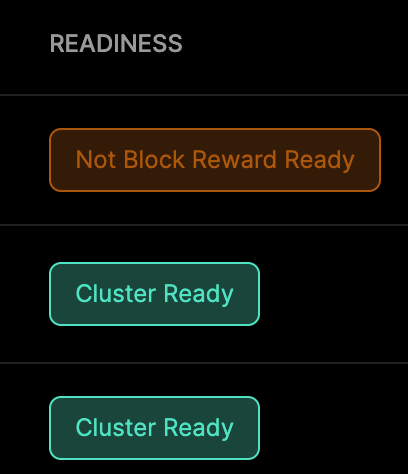
Not Block Reward Ready offers one of three tooltips in the UI to provide troubleshooting tips.
- Please check your device’s computational capacity- Your device’s computational capacity is below the required threshold.
- Please check your device setup and computational capacity- Your device setup might not be configured correctly and its computational capacity is below the required threshold. Please refer to the worker setup guide.
- Please check your device setup- Your device setup might not be configured correctly. Please refer to the worker setup guide.
Transition Between States
The transition from Pending to Cluster Readystate can take up to 12 hours. During this time, we form clusters with newly joined devices (Pending) and verify them as Cluster Ready once they successfully pass the cluster formation process. If the device fails to join the cluster multiple times, it’s labeled as Not Block Reward Ready. To verify if a device has successfully passed cluster formation is to check its job page, which indicates the record of past cluster formations.Troubleshoot
- Verify that the device is operated using io.net official binaries and official docker images.
- Verify that the device has the right network setup (beyond basic internet speed test capability) where the device can properly interact with the remote head node or peer workers.